WordPress is one of the most popular blogging scripts. The ease of use is one of the many reasons why people choose WordPress, and installation is just as easy. First, you'll have to create a database and user on your host if you don't already have one. To do this in cPanel, for example, sign in to cPanel. Select MySQL Database Wizard. Use the wizard to create a database and a user, and assign all privileges. Make note of the database name, username and password. 1. Download the archive from WordPress.org. Unzip the file 2. Open wp-config-sample.php in a code editor such as Notepad or Textpad. 3. Replace the default values for DB_name, DB_user, DB_password and DB_host with your database name, username, password and host location, respectively. Most hosts are localhost, so you may not need to change that. If you plan to install multiple blogs, you can also change the table_prefix further down the page. By default, it's wp_, but you can change the prefix to anything you like.
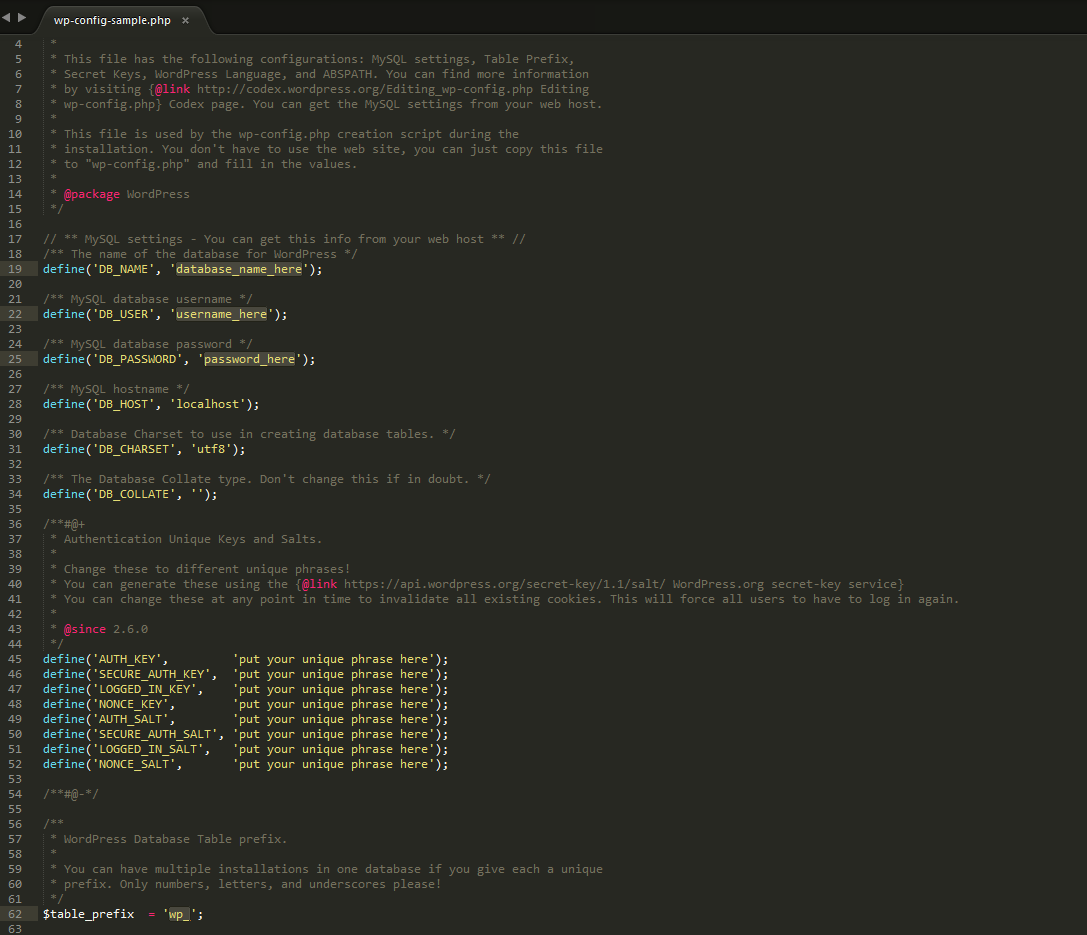
4. Save the file and rename it to wp-config.php. 5. Upload all the files from the WordPress archive to your host. You can do so via FTP or your host's browser-based uploader. The files can all go in the base of your domain — YourSite.com — or you can drop the WordPress files into their own folder so that your root directory remains uncluttered. For example, you can upload all the files and folders from the archive to http://yoursite.com/wp. 6. Open your browser and visit http://yoursite.com/install.php or http://yoursite.com/wp/install.php if you used a different directory for the WordPress files.
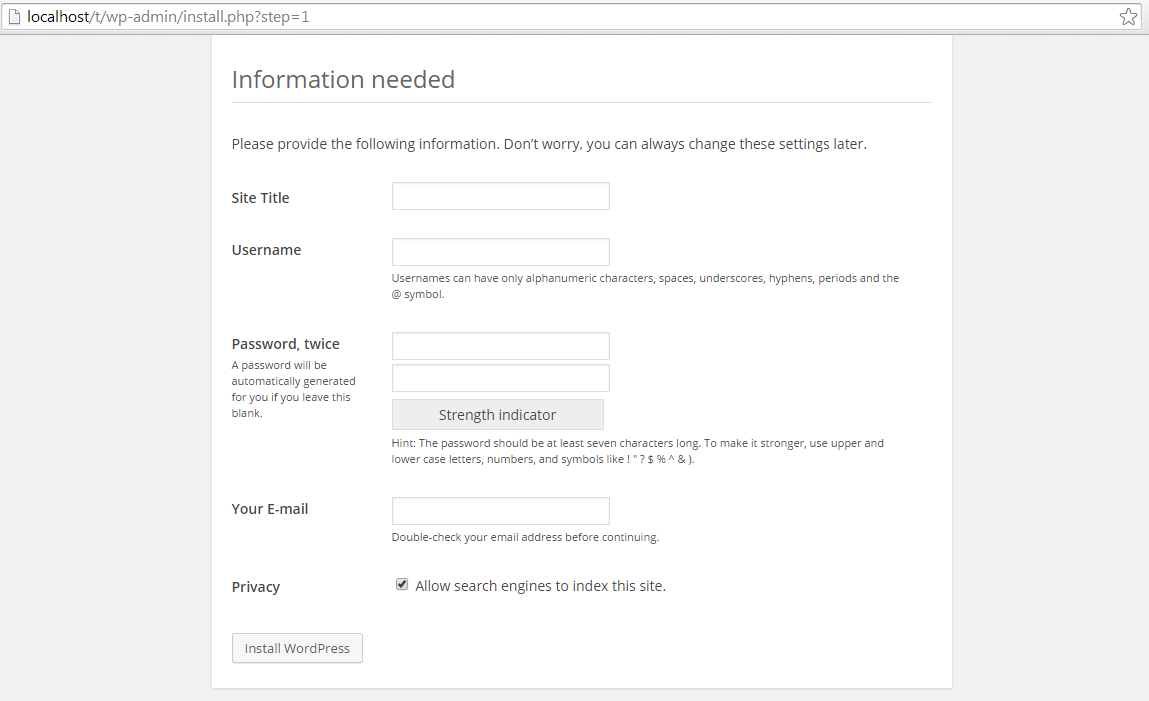
If your configuration file is correct, installation will have happened successfully.
Basic Configuration
Now that WordPress is set up, you'll want to change some settings that will help make your site unique and enable you to promote your WordPress-powered website. An admin bar will appear above, which will give you access to your dashboard — the control panel for WordPress — whenever you visit your blog and you're logged in.
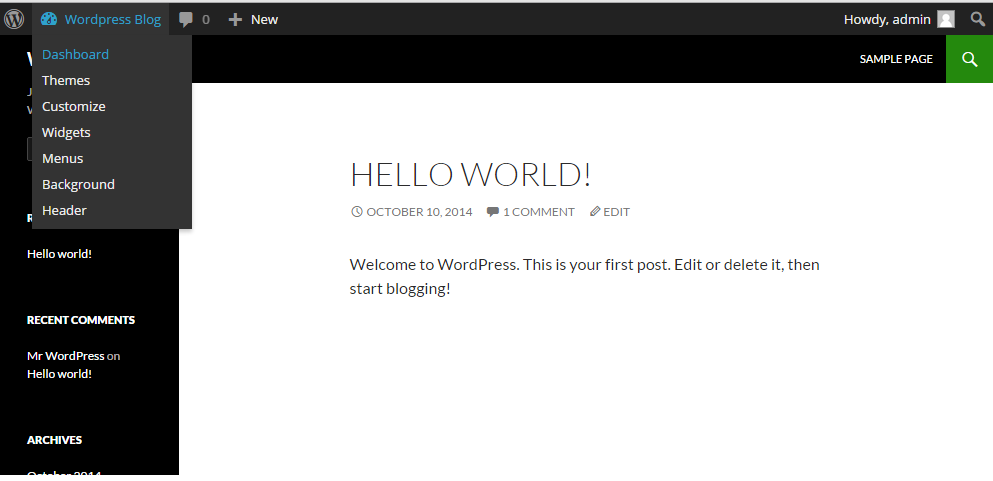
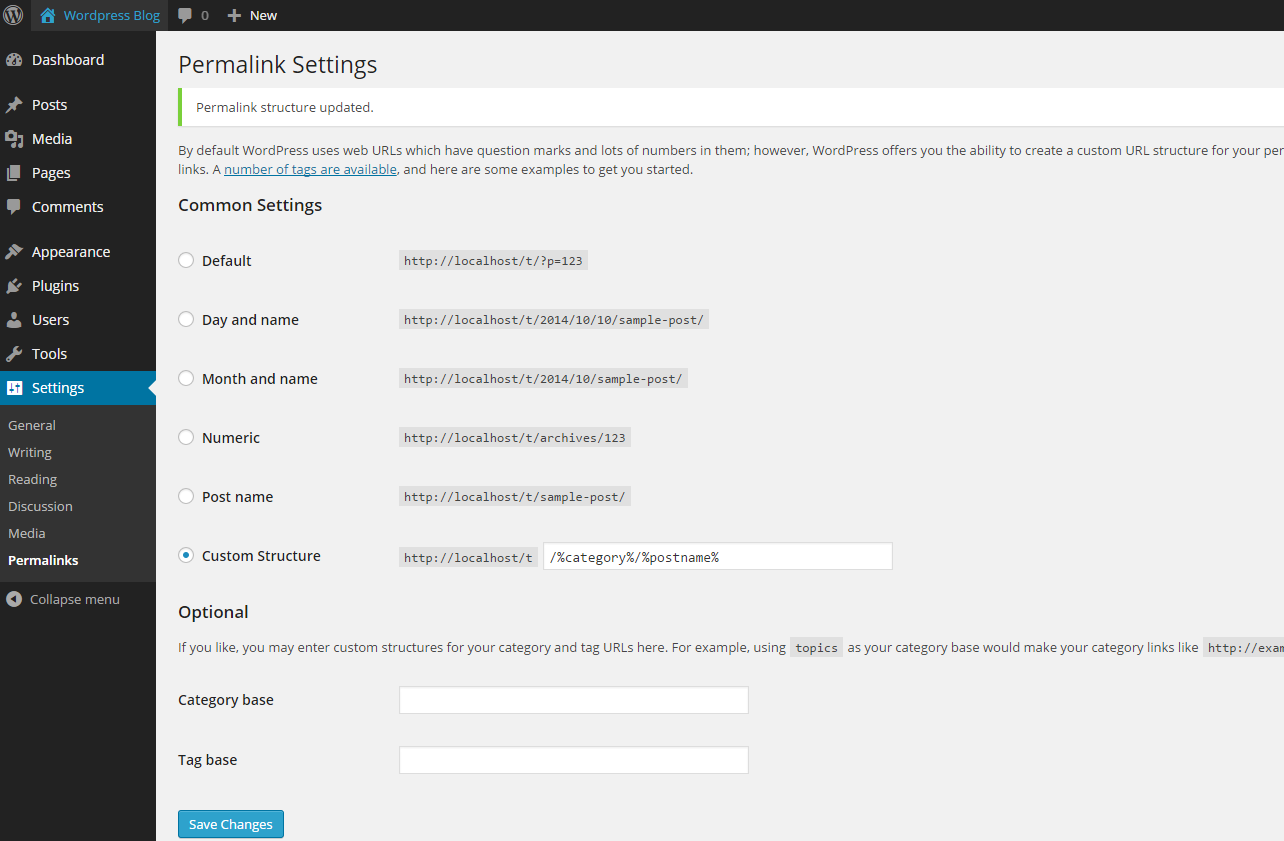
Upon entering the dashboard, you'll see quick data on the first page. You can change the content you see on any page within your dashboard by clicking Screen Options and checking specific elements. From the dashboard, you can add a page, post, picture or link. You'll also see a "+" button on the admin bar when browsing your blog, which allows you to quickly add content without first logging in to your dashboard. We recommend changing a few settings before you dive headfirst into posting, however. Simply click Settings to get started. Settings are broken down into options such as General, Writing, Reading, Discussion and Media. Permalink options are especially important. Permalinks are the format of your URLs, and they should include category and post names for search engine optimization.
Customizing WordPress
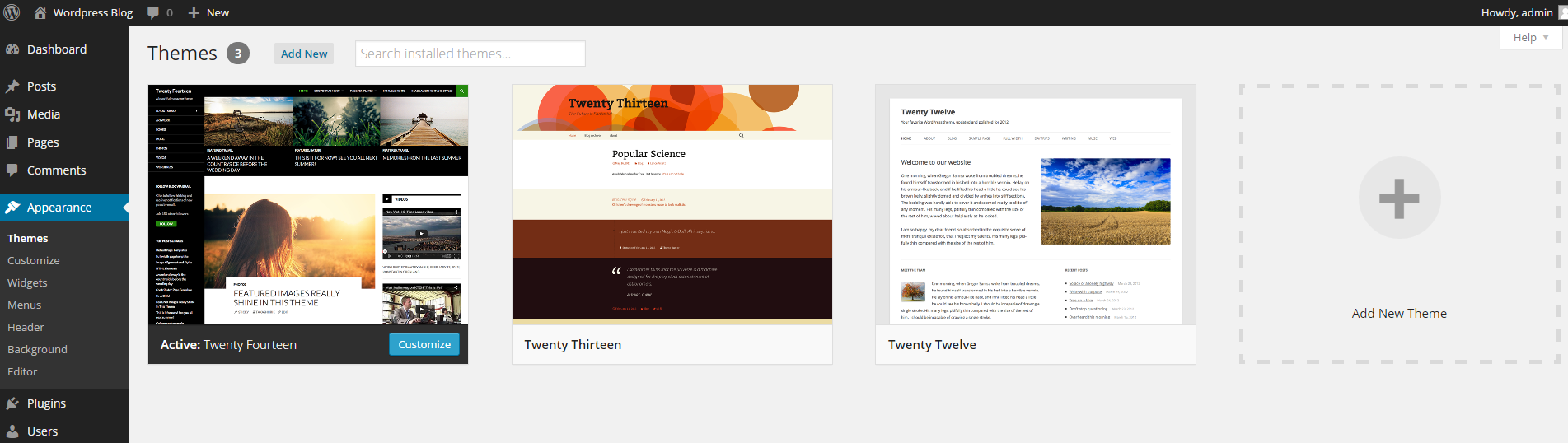
You can easily add a theme or plugin from the dashboard by clicking the appropriate tab in the navigation area. Search for a theme or plugin that meets your needs, or you can upload a zipped file that you've downloaded from the Web. You can install multiple themes and switch between them in the Appearance menu.
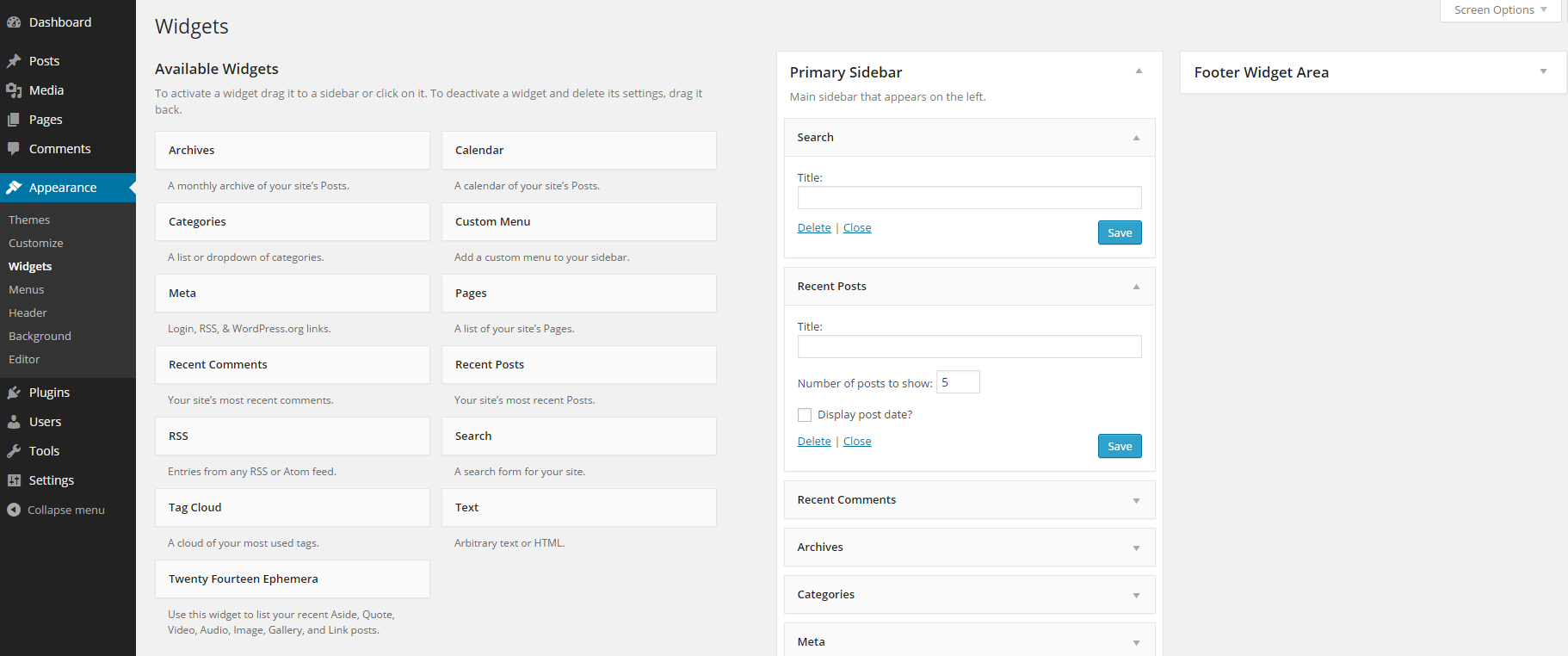
Here, you can also add widgets to each of your themes. Widgets can be snippets of HTML or text or can allow social media sharing. Many plugins come with widgets, too.
Troubleshooting Installation
If you choose to install WordPress to its own directory, you'll have to change the directory location in the config file from wp-settings.php to the actual path, which might be wp/wp-settings.php. Your MySQL host name may not be localhost. Contact your host if WordPress fails to make a database connection. You will not be able to install themes or plugins, edit theme or plugin files from your dashboard, upload media to your blog, or change permalinks without the correct permissions. Typical permissions are as follows:
Directories set to 755
Files set to 644
Some plugins might instruct you to change a file or folder to another permission, but you should change it back as soon as you're done. Once you're comfortable with the dashboard, you can make any changes necessary even if you're not tech-savvy, which is one of the benefits of WordPress.